How to Import Videos from Apple Photos into SnapMotion?
SnapMotion can open videos directly from your Apple Photos library on Mac, so you don't need to export them to Finder before extracting images.
Here's how to import a video from Photos into SnapMotion.
Step 1: Open Your Photos Library from SnapMotion
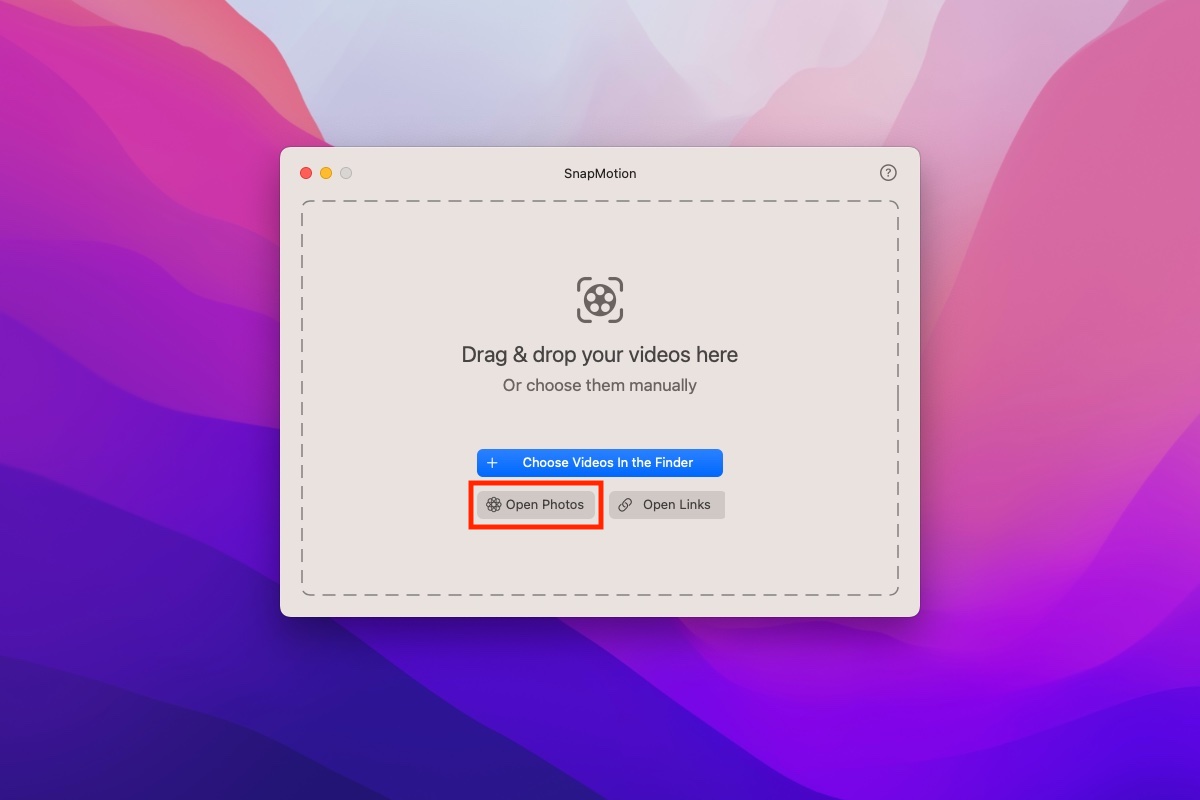
Open SnapMotion and click the dedicated Photos button in the welcome window.
You can also access this option from the main menu bar.
Step 2: Select Your Videos
SnapMotion will display a window where you can browse the videos available in your Photos library.
Select the video or videos you want to use, then confirm your selection.
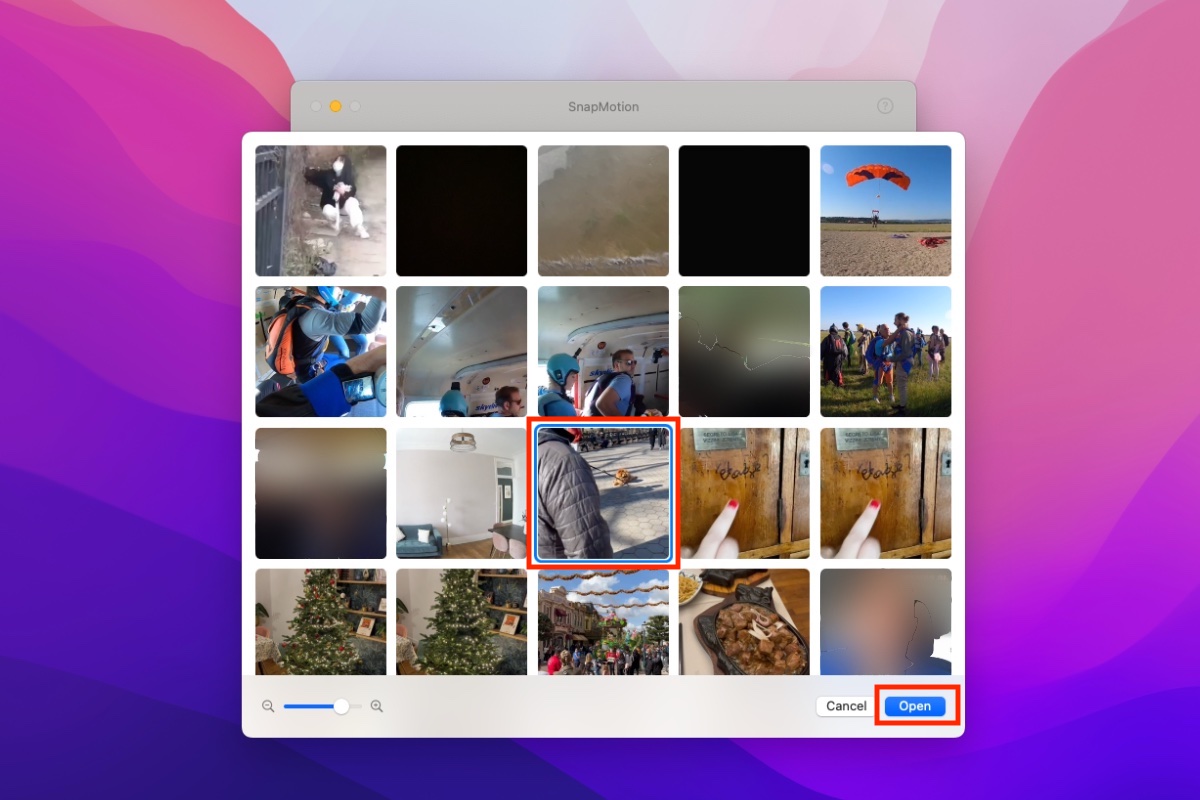
Your selected videos will open directly in SnapMotion, ready for you to browse and extract individual frames as images.
No Need to Export Videos from Photos First
Using the built-in Photos integration saves you an extra step. Instead of exporting a video from Apple Photos to your Mac and then opening it in SnapMotion, you can access it directly from the app.
Once your video is loaded, you can navigate through it frame by frame and capture the images you want.
Stay in touch
We are working on awesome new projects, subscribe to be notified.